
A friend of mine recommended that I check out ChatGPT, a basic artificial intelligence chat interface. I did so and chose to write this review.
The first thing to note is that it works best if you’re signed in to your Microsoft account and using the Microsoft Edge browser. Otherwise, you may become lost and be presented with different types of chat interfaces like GPT-4 which is more advanced.
Now that you’re signed in to your Microsoft account and are using Edge, use Microsoft Bing (a web search engine) to search for ChatGPT. You don’t really need to start this way, but I wanted you to see some of the results that come up when doing so. You’ll get a screen that looks something like this:
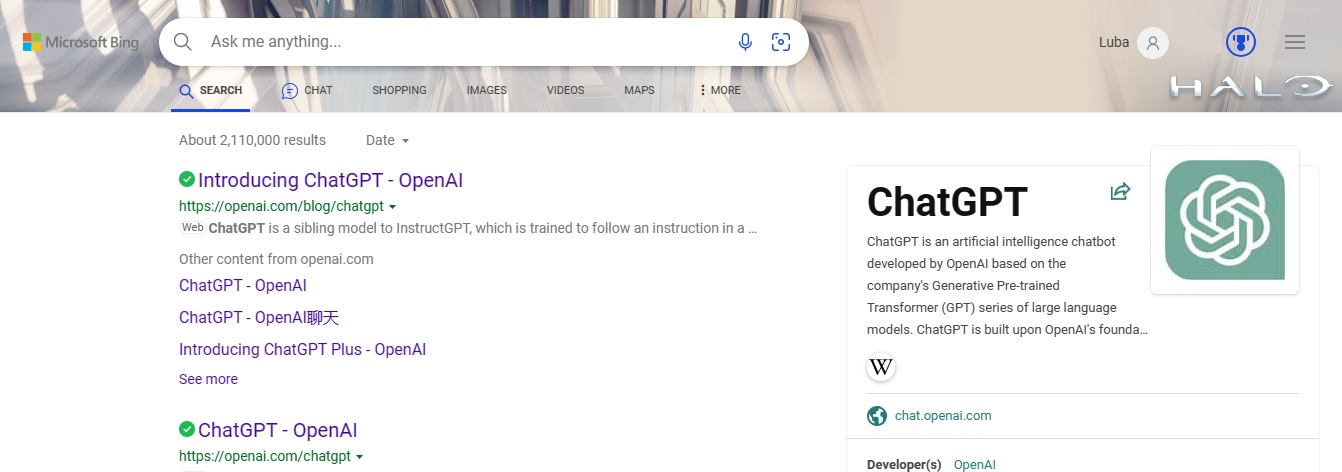
Note that a big banner (not featured in the above screenshot) will sometimes appear at the bottom of your screen that says, ‘Chat Now.’ If it does, you can click on Chat Now and go directly to ChatGPT. Alternatively, at the top of the above screenshot, in the menu bar, you can simply click on CHAT which is to the right of SEARCH. This works, too.
The possibilities for ChatGPT are endless, but remember to ask appropriately and be polite
The second thing to note when using ChatGPT is that the possibilities are endless but that it’s important to select topics that are appropriate and remember to thank the ‘person’ who is helping you, as you would do if you were being helped by a real person.
Regarding the type of expected answers from ChatGPT, you can choose between ‘More Creative,’ ‘More Balanced,’ or ‘More Precise.’ I opted for More Balanced as it is positioned smack in the middle and represents a balanced perspective between creativity and precision. Feel free to choose whatever you think might be best for you, and/or for the particular answer you seek. This option can be changed prior to beginning a conversation with ChatGPT.
If you’ve used ChatGPT before, you’ll be prompted to click ‘New topic’ when you’ve obtained what you’re looking for. ChatGPT will respond as follows, ‘No worries, I’m excited to try something new. What can I answer for you now?’
For example, I inquired about what the cheapest, roundtrip airline ticket would be between two major world cities. ChatGPT replied by providing several websites including FlightHub and Expedia and what they found was cheapest, under CDN $400. Since I thought that this was impossible, I visited the website, searched myself and found that it was for a special deal that included staying at a hotel. After extending the conversation and giving more precise details (like dates), I corroborated that Chat GPT did indeed find the cheapest flight between the two destinations.
When the interface doesn’t find what you’re looking for, you’ll get a message like this, ‘I’m sorry, but I couldn’t find …’ with further recommendations which are indexed to URL links below the interface prefaced by ‘Learn more.’ Feel free to explore further by either clicking on a link of choice or clicking Learn more; you can then return to the dialog box if you have additional questions. Unlike when speaking with a ‘real’ person, there doesn’t seem to be any time limit in conversations with ChatGPT. You could, theoretically, ask a question and then midway through the conversation go to bed and pick things up the next day!
If you click on the three bars at the top of the page, circled in red in the below screenshot, above the words ‘Welcome to the New Bing,’ you’ll be presented with five categories: Search, Country/Region, Language, Homepage and Personalization.

Under Search, you are able to choose from various options such as Safe Search with the options of Strict, Moderate or Off. I personally selected Moderate to filter out certain images and videos from search results, but you can select what is best for you. If you’d like to hear your results read out audibly, under Voice Search you can choose from three narrators, Jenny, Guy or Aria. Or, just leave it on Auto which I had on during my searches with no audible voice. If you want to see search results as you type, go ahead and toggle that option. You can also choose how many results you want to see on the page. The choice spans from 50 to 10 with the Auto option allowing the interface to choose for you. I left mine on Auto for now but if you don’t want too many results crowding the top of your screen, then choose 10. You can also choose to show search results—links or news items—in a new tab or window by toggling appropriately.
Regarding how often I want to see chat responses on the results page, I opted for Auto (default) rather than Off.
Under Country/Region, you’ll be shown a list of countries and asked to enter your country. I recommend choosing the region or country where you live. To my understanding, this location will not change even if you’re traveling. The exception to this is if you clear your browser or cookies or use a different browser or device. Note that if you change your country/region, doing so ‘may also change your display language and other settings.’[1]
Under Language, a variety of languages are displayed. Choose your display language. I chose English. If you don’t see your language, click on ‘See more languages.’ I counted 102 languages total. Beneath that, you’ll be asked if you prefer results in English or results in these languages. Toggle the option you prefer.
Under Homepage, for videos and panorama, you have three options: ‘Play automatically,’ ‘Don’t play automatically,’ or ‘Show a still image.’ I selected Don’t play automatically as this could otherwise be distracting. Also under this rubric you can choose whether you want to show news and interests; show homepage image; and/or show the menu bar. I left mine toggled.
Lastly, under Personalization, there’s a link to the ‘personalization settings page’ where you will be prompted to sign into your Microsoft account again to manage your data and privacy settings.
After you’ve selected your settings as outlined above, make sure to click Save and go back to ChatGPT.
Your screen should look something like this:

Click on the three bars at the top once more. Labs gives you the option of choosing how often you want to see chat responses on the search result page. I left it on Auto (Default) rather than Off. Beneath that you’ll see Search history and Privacy. Clicking on Search history takes you to a page that looks something like this with your name at the top instead of mine:
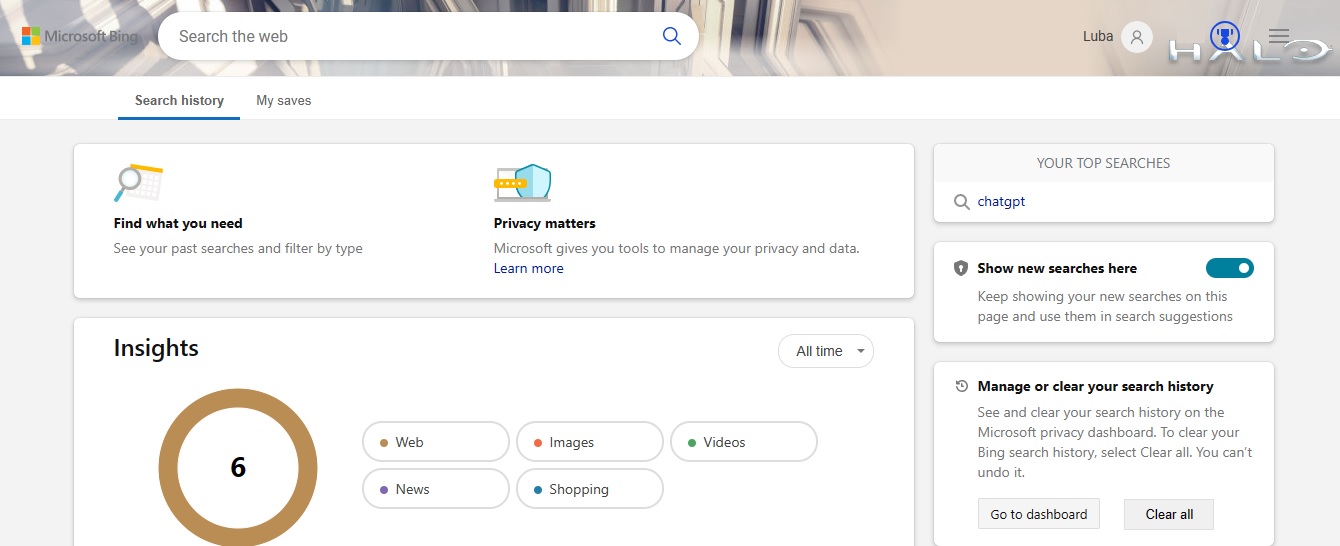
On this page you’ll get insights about your searches as well as be able to manage or clear your search history. Clicking on the back arrow at the top left-hand corner of my browser brought me right back to ChatGPT.
If you click on Privacy, it will take you to a page that looks like this:
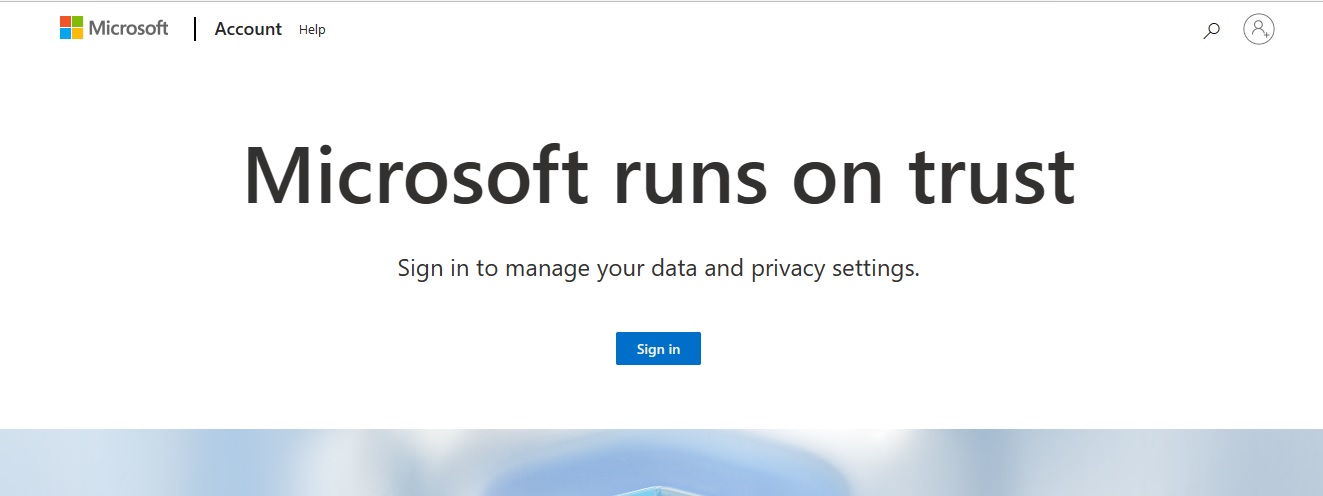
It’s interesting to note that even though I’m already signed in, it’s asking me to sign in again to manage the data and privacy settings of my account. This time, hitting the back arrow on my browser didn’t work. I had to select CHAT again from the menu bar to return to ChatGPT.
Going back to settings, the 3 bars at the top explained earlier, you’ll see a link called Feedback. This is for those who have feedback for Bing and may wish to include a screenshot.
The last option in settings is called Themes. This is fun because you have a choice of 10 different themes plus one of choosing no theme at all, the one that is barred out. As you can see from the screenshots in this review, I chose the Halo theme. Unfortunately, the theme only appears when you’re in SEARCH mode. It doesn’t appear when I’m using ChatGPT.
If you were a little reluctant to try the new ChatGPT, I hope this review will make it easier for you to dive in.
Thanks for stopping by my blog today,
Luba
Photo by Mohamed Nohassi on Unsplash
[1] References in this review are from Microsoft Bing.
 LUBA RASCHEFF